Hi, this technical blog will contain urls/tutorials that relate to latest technology. More so, I will also attempt to write tutes on my own to simplify things that are too complex. Thanks for your time in checking out this blog.

Showing posts with label mobility. Show all posts

Monday, May 01, 2006

A Simple MIDP Application using Netbeans

The last post was on setting up the Nokia S60 SDK with netbeans 5.0. The application we are going to develop now doesn't require the Nokia SDK. It is required only when you want to implement Nokia specific features. By the way, MIDP is called Mobile Information Device Profile. Two common versions of MIDP supported by most mobile phones across manufacturers are MIDP 1.0 and MIDP 2.0. MIDP on combination with CLDC - Connected Limited Device Configuration - allows us to build device independent applications. Both of them are products from Sun Microsystems. You can read more about MIDP here and CLDC here. Look at the huge list of mobile phones that support MIDP and CLDC.

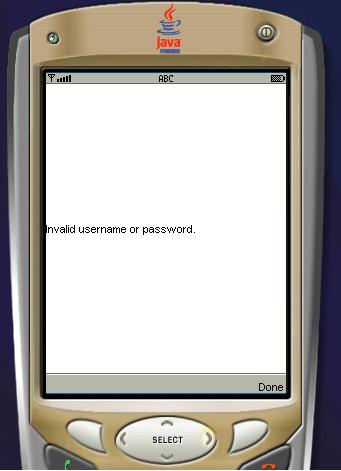
For this application, we will use the standard emulator that ships with the netbeans mobility pack. We will create a simple application that accepts username and password. If the username is "aswin" ;) then it will take you to the next screen. Otherwise, it will display a small error box. Understood??

Ok, be a good student and fire up Netbeans 5.0.

1. Go to File-->New Project. Select "Mobile" on the left pane and "Mobile Application" on the right pane.
2. Click "Next" and give the project name as "MyGreatMobile". Click "Next".
3. Select the Emulator Platform as J2ME Wireless Toolkit 2.2. Leave the other settings as it is and select "Finish".

You should have something similar to the one shown below.
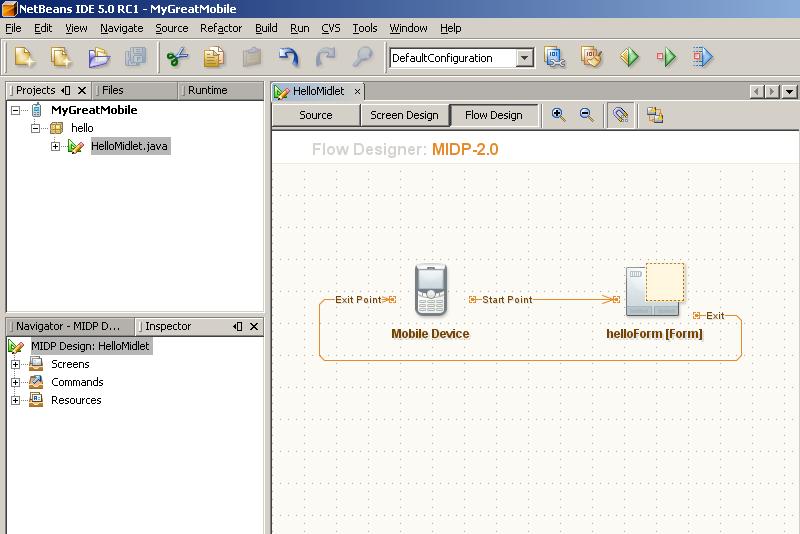


4. Choose Window-->Palette. The Palette window is now displayed. From the "Form Items" section, drag and drop 2 textfields on the "HelloForm". The whole window should look like the one shown.


5. From the "Commands" section of the Palette, drag-n-drop and "Ok Command" and a "Exit Command". Press F5 at anytime to view the output on the emulator.
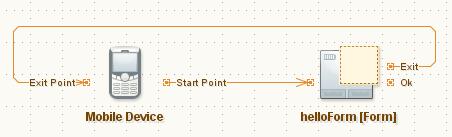


6. Drag-n-drop a "List" and an "Alert" from the "Screens" section of the Palette. Link the "Ok" of "helloForm" to "list1". We will link the Alert programmatically. Also d-n-d a few listitems from the "Elements" section and a "Ok Command" onto "list1". Link the "Ok" of list1 to Form1. Check the screen shot below.
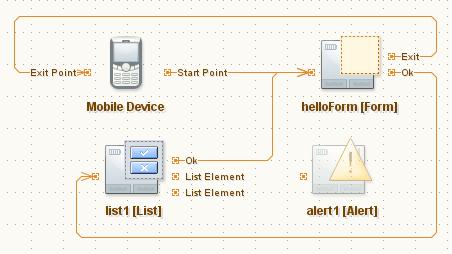

7. Double click on alert1 and change the text to "Invalid username or password".
8. Now, if you switch to the Source view from the Flow Design view, you will be able to see that all the necessary code is generated, to implement the functionality shown in the flow design. THAT IS AMAZING!

Let us switch to Source view and do some tweaking to get the functionality we want. Find the function called public void commandAction. That function implements all the necessary conditions for navigation. It initially looks like below.
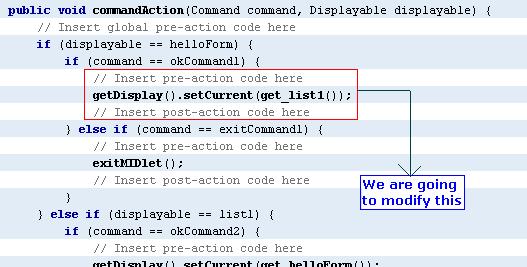

Change the code so that it is similar to the next screen shot.
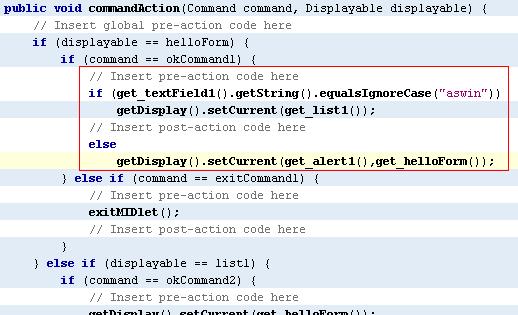

We are done. Press F5 to view the beauty :D


The next post will be on consuming .net web services on Java ME. Bye!!

Thursday, April 27, 2006

Nokia S60 Emulator Integration with Netbeans 5.0

Hello guys, I just downloaded the Nokia S60 SDK for developing MIDP based applications for java mobile phones. Netbeans proved its mettle here again in terms of recognising the SDK and freeing me of all troubles. I downloaded the S60 SDK here and netbeans 5.0 here. CarbideJ is not required if you are going to develop on top of netbeans.

That said, i will tell you how to integrate the S60 SDK into netbeans.
1. Goto Tools-->Platform Manager and click on the "Add Platform" button.


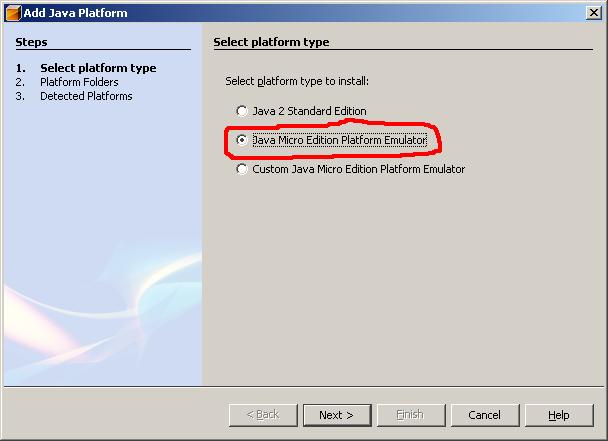
2. Select "Java Micro Edition Platform Emulator" in the new dialog box and click on "Next".


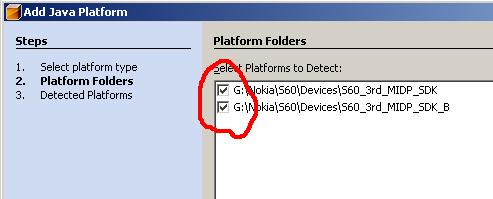
3. If the IDE is unable to locate the S60 platform folders, click on "Find More Java ME Platform Folders..." button and point it to the location where you have installed the SDK.


4. Click on Next. It will detect the installed platforms. Click on Finish and we are done. Close the Java Platform Manager.

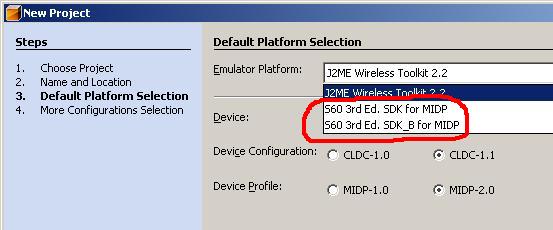
Now, go to File-->New Project. Select "Mobile" on the left pane and "Mobile Application" on the right pane. Give it a name. On the next screen click on the "Emulator Platform" combo box and you will be able to see the installed emulators.


Thats it! we are done. You are up and ready to build beautiful applications for MIDP phones in just 4 steps :)